Instance List Entries
The instance list in the dashboard contains an entry for the controller itself and every instance registered with the controller.
Each list entry contains several items indicating the status of the instance, management controls, and options.
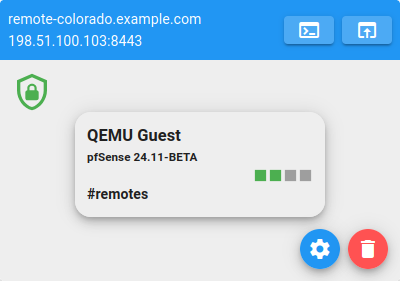
Instance List Entry
- Hostname
The hostname of the instance is printed in the bar at the top of the instance entry at the upper left.
- Address
The IP address and Netgate Nexus GUI port is printed in the bar at the top of the instance entry under the hostname.
- Management Controls
The upper right area of the bar at the top of the instance entry contains two icons to manage the instance:

Opens a Remote Console on the instance.

Enters the Remote Configuration interface for the instance.

The kebab menu contains additional instance options.
 Open Settings
Opens a modal dialog window with general options for this instance entry (Instance List Entry Options).
 Remove Device
Deregisters (removes) this entry from the controller.
- Status Icon
In the upper left of the main area of the instance entry is an icon indicating its status. Possible states include:

Instance is online.

Instance is offline or has not checked in since Netgate Nexus started.

There was an error communicating with the instance.
- License Status Icon
Next to the status icon is an icon indicating the license status of the instance.

Nexus license is present and valid.

Nexus license is missing.
- Device Type
The first line of text in the instance body is the type of device. This can be a hardware model, hypervisor type, cloud provider, etc.
- Version Information
The current software version is printed under the device type.
- Interface Status
The instance entry contains a row of squares indicating network interface status for the device. Connected interfaces are green, disconnected or disabled interfaces are gray. Hover the mouse cursor over a square to see its name and link speed.
- Tags (If present)
Entries can be classified via tags (Tag Manager). If an instance has assigned tags, they are printed here.
- CPU
Current CPU usage of the instance in gauge form and as a percentage.
- Memory
Current memory usage of the instance in gauge form and as a percentage.
- Disk
Current disk usage of the instance in gauge form and as a percentage.
- Uptime
Current uptime of the instance.